iOS NLP: Building Language-Aware Apps for iPhone and iPad
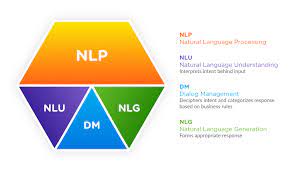
Natural language processing (NLP) gives apps the ability to work with everyday language. On iOS, NLP can help an app identify a language, divide text into words or sentences, recognize names and other entities, analyze sentiment, and classify text. These capabilities power features such as search, writing assistance, voice interfaces, content organization, and accessibility tools.
Apple provides built-in tools for many language-processing tasks, while Core ML lets developers run custom machine-learning models. Choosing the right approach depends on the app’s goals, language requirements, privacy needs, and performance constraints.
What NLP Can Do in an iOS App
NLP covers a range of tasks, from simple text analysis to more advanced interpretation. Common examples include:
- Language identification: Detect the likely language of a text sample.
- Tokenization: Split text into words, sentences, or other meaningful units.
- Linguistic tagging: Identify parts of speech, such as nouns and verbs, or classify tokens by type.
- Entity recognition: Find items such as people, places, and organizations in text.
- Sentiment analysis: Estimate the tone or sentiment of a passage.
- Text classification: Assign a category to text, such as “support request,” “receipt,” or “news.”
- Custom language features: Apply a model trained for a specific product, industry, or vocabulary.
Apple’s Natural Language Framework
Apple’s Natural Language framework provides APIs for analyzing written language. Its NLTagger class can enumerate tokens and apply linguistic tags, while NLLanguageRecognizer can identify the language of a text sample. The framework also includes support for working with custom NLP models through NLModel.
For example, an app can use NLTagger to split a sentence into words and identify each token’s type:
import NaturalLanguage


let text = "The team built a helpful language app."


let tagger = NLTagger(tagSchemes: [.tokenType])


tagger.string = text


let options: NLTagger.Options = [.omitWhitespace, .omitPunctuation]


let range = text.startIndex..<text.endIndex


tagger.enumerateTags(


    in: range,


    unit: .word,


    scheme: .tokenType,


    options: options


) { tag, tokenRange in


    let token = String(text[tokenRange])


    print("\(token): \(tag?.rawValue ?? "unknown")")


    return true


}
This kind of analysis can support features such as keyword extraction, text highlighting, and more structured search. The exact results depend on the language, the text, and the task being performed.
Using Core ML for Custom NLP
When a built-in API does not meet an app’s needs, developers can use Core ML to run a custom model on an Apple device. A model might classify customer messages, detect domain-specific terms, or identify whether a document belongs to a particular category.
Custom models can be created with Apple’s machine-learning tools or prepared using compatible external workflows and converted for Core ML. Before deployment, it is important to test the model with realistic examples, including short messages, spelling variations, and the languages the app intends to support.
For some tasks, a smaller specialized model is a better choice than a large general-purpose model. It can reduce download size and memory use while delivering faster results for a clearly defined job.
On-Device Processing and Privacy
One advantage of iOS NLP is that many language-processing tasks can be performed on the device. On-device processing can reduce network delays, support some features without an internet connection, and limit the amount of user text sent to a server.
However, “on-device” does not automatically guarantee that an app handles information responsibly. Developers should review what data the app collects, how long it is retained, and whether any text is transmitted to external services. Sensitive content—such as health, financial, or personal messages—deserves particular care.
Working with Multiple Languages
Language support is not one-size-fits-all. Tokenization, grammar, writing systems, and regional conventions vary widely. A feature that works well in English may behave differently in languages that do not separate words with spaces or that use different sentence structures.
Developers should verify the language coverage of each API and model, then test with native or high-quality sample text. Language identification can help select an appropriate processing path, but very short or mixed-language text may be difficult to classify accurately.
Performance and Product Design
NLP features should be designed around the experience they support. For example, an app that analyzes a long document may need to process text in the background, while an interactive writing feature should return results quickly enough to feel responsive.
- Test performance on older supported devices, not only the latest hardware.
- Keep large models out of memory when they are not in use.
- Provide clear behavior when a language or text type is unsupported.
- Allow users to review or correct automated results when accuracy matters.
- Measure quality with representative data rather than relying on a few examples.
NLP and Translation Are Different Tasks
NLP can help an app understand or organize text, but it is not the same as translation. Translation converts text from one language to another and may require a separate Apple API, a third-party service, or a dedicated machine-learning model. Apps should choose tools based on the exact task rather than assuming that language analysis will translate content.
Conclusion
iOS offers a practical foundation for adding language-aware features to mobile apps. Apple’s Natural Language framework handles common analysis tasks, and Core ML provides a path for specialized models. By testing language coverage, planning for device performance, and treating user text carefully, developers can build NLP features that are useful, responsive, and appropriate for their audience.
Mastering iOS NLP: 9 Essential Tips for Effective Language Processing
- Use Apple’s NaturalLanguage framework for language-aware tasks.
- Detect the language before processing text.
- Tokenize text with NLTokenizer for words or sentences.
- Use NLTagger to identify parts of speech and named entities.
- Normalize text before comparing or searching.
- Handle Unicode and emoji safely.
- Keep on-device processing in mind for privacy.
- Test with multiple languages and writing styles.
- Use Core ML for custom NLP models on iOS.
Use Apple’s NaturalLanguage framework for language-aware tasks.
Use Apple’s NaturalLanguage framework to add language-aware features to your iOS app, such as identifying a text’s language, splitting it into words or sentences, and recognizing names or other entities. Its built-in tools can handle common NLP tasks without requiring a custom model, helping you create responsive features while keeping processing on device when supported. Check language coverage and test with realistic text to make sure results fit your users’ needs.
Detect the language before processing text.
Detecting the language before processing text helps an iOS app choose the right analysis tools and avoid unreliable results. Use Apple’s Natural Language framework to identify the likely language, then select suitable tokenization, tagging, or other language-specific processing. Keep in mind that very short text, mixed-language messages, and names may be difficult to classify, so provide a fallback when the detected language is uncertain.
Tokenize text with NLTokenizer for words or sentences.
Use `NLTokenizer` from Apple’s Natural Language framework to break text into words or sentences for features such as search, text highlighting, and content analysis. Set the tokenizer’s unit to `.word` or `.sentence`, provide the text, and enumerate its tokens to access each token’s text and character range. Because tokenization can vary by language, set the tokenizer’s language when it’s known, or use language identification to help choose the right settings.
Use NLTagger to identify parts of speech and named entities.
Use Apple’s NLTagger to analyze text and identify parts of speech, such as nouns and verbs, as well as named entities like people, places, and organizations. Set the tag schemes you need, then enumerate the text by word or sentence to retrieve tags for each range. This can support features such as smart search, text highlighting, and content organization. Because results can vary by language and context, test with representative text and handle cases where a tag is unavailable.
Normalize text before comparing or searching.
Normalize text before comparing or searching so small formatting differences don’t cause missed matches. On iOS, consider converting text to a consistent case, trimming extra whitespace, and applying a consistent Unicode normalization form before processing it. For example, accented characters can sometimes be represented in different ways even when they look identical on screen. Normalize both the user’s input and the text being searched, while preserving the original text for display. Be careful not to remove punctuation or accents indiscriminately, since those details can affect meaning in some languages.
Handle Unicode and emoji safely.
When working with text on iOS, handle Unicode and emoji safely by using Swift’s `String` APIs instead of assuming that characters have a fixed number of bytes or that each visible symbol is a single code unit. Emoji can include multiple Unicode scalars—for example, skin-tone modifiers or joined family symbols—so avoid slicing strings by arbitrary integer offsets. Use `String.Index` and appropriate character boundaries, and test with accented text, right-to-left scripts, and complex emoji to prevent crashes, broken display, or incorrect NLP results.
Keep on-device processing in mind for privacy.
When adding NLP features to an iOS app, consider processing text directly on the device whenever practical. On-device processing can reduce the need to send personal messages or documents to a server, helping protect user privacy while also supporting faster responses and, in some cases, offline use. Be sure to review what data your app collects and clearly explain any information that is transmitted or stored.
Test with multiple languages and writing styles.
Test your iOS NLP features with multiple languages and writing styles to see how they perform beyond polished, standard English. Try short messages, regional expressions, slang, typos, mixed-language text, and different writing systems. Language structure varies, so tokenization, language detection, and classification may behave differently across samples. Testing with diverse, realistic examples helps reveal gaps early and makes the feature more reliable for a wider range of users.
Use Core ML for custom NLP models on iOS.
Use Core ML to add custom natural language processing to your iOS app when built-in tools don’t meet your needs. You can run a model trained for tasks such as sorting support messages, recognizing industry-specific terms, or classifying documents directly on Apple devices. On-device inference can make results faster and reduce the need to send users’ text to a server. Test your model with realistic examples, and consider its accuracy, size, memory use, and language coverage before adding it to your app.